

What this solves
You need to upload website files (HTML, images, WordPress, etc.) to your hosting. FTP is a standard way to do it.
Get your FTP details
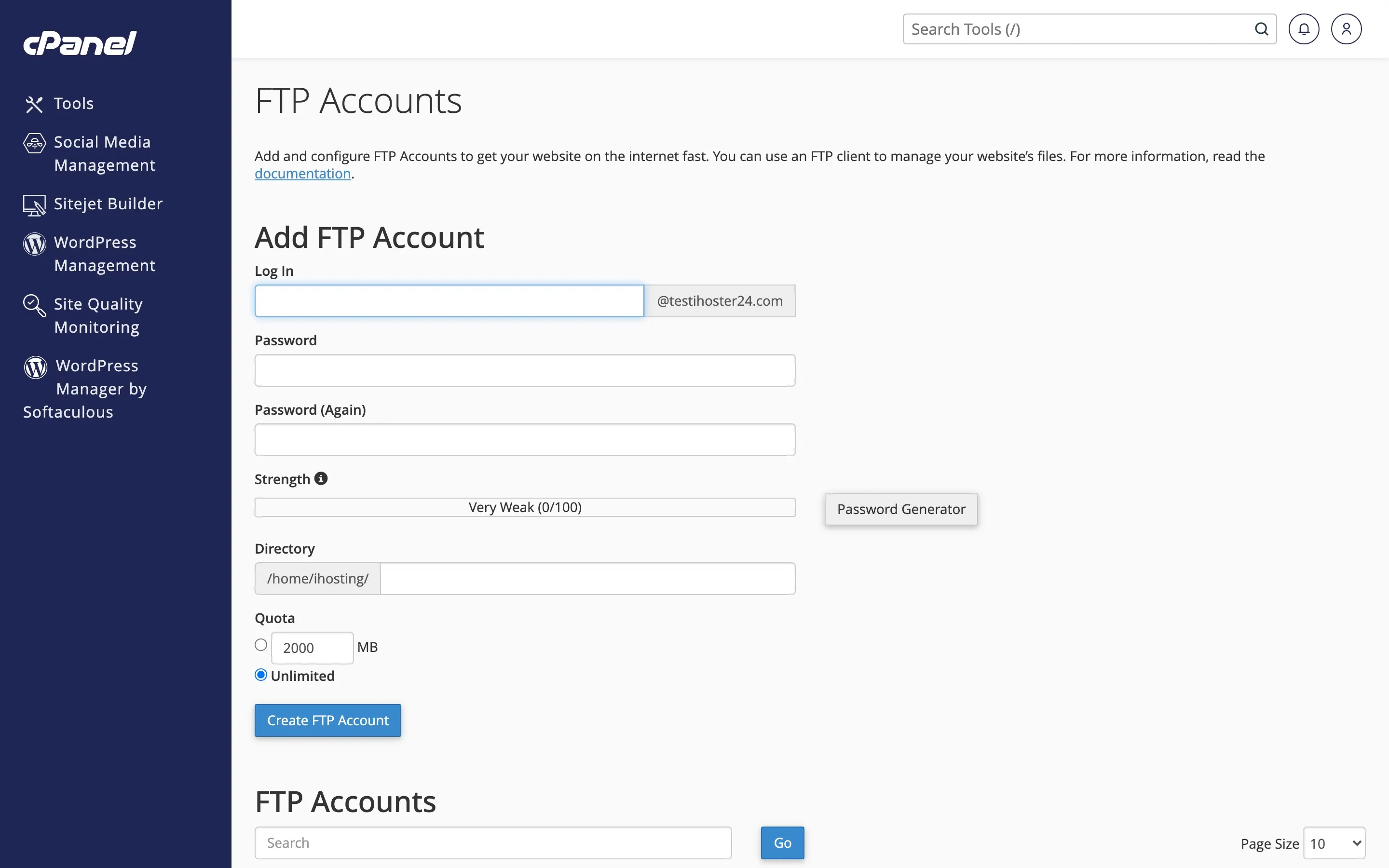
From Client Area → your hosting → Log in to cPanel, open FTP Accounts. Create an account (or use the main cPanel user). Note the FTP server, username, password, and port (usually 21).
Choose an FTP client
Use FileZilla, Cyberduck, or another FTP client. Install and open it.
Connect and upload
Enter host, username, password, and port. Connect. The remote side usually shows public_html (website root). Upload files into public_html or the correct subfolder. Preserve folder structure for apps like WordPress.
Tip: Prefer File Manager in cPanel for quick edits. For large uploads, FTP/SFTP is often faster.
When to contact support
If connection fails, we can verify your FTP account and firewall rules.
Was this helpful?
Thanks for your feedback!