
What this solves
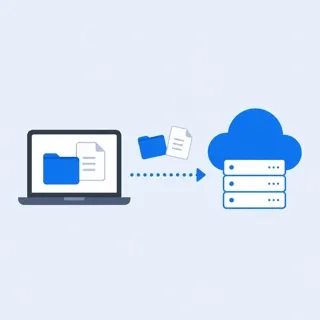
You want to back up your site and be able to restore it. This guide covers cPanel backups.
Creating a backup
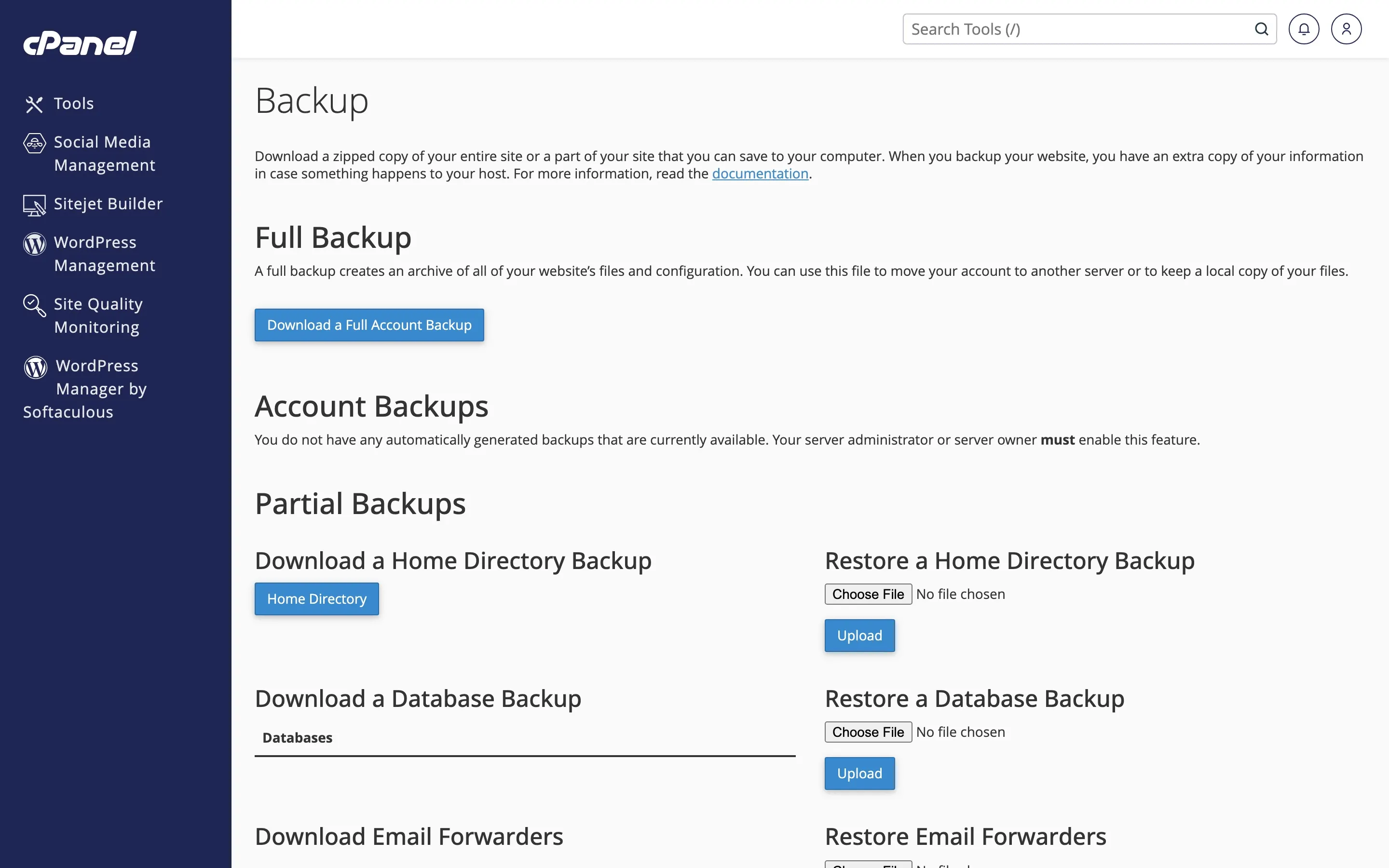
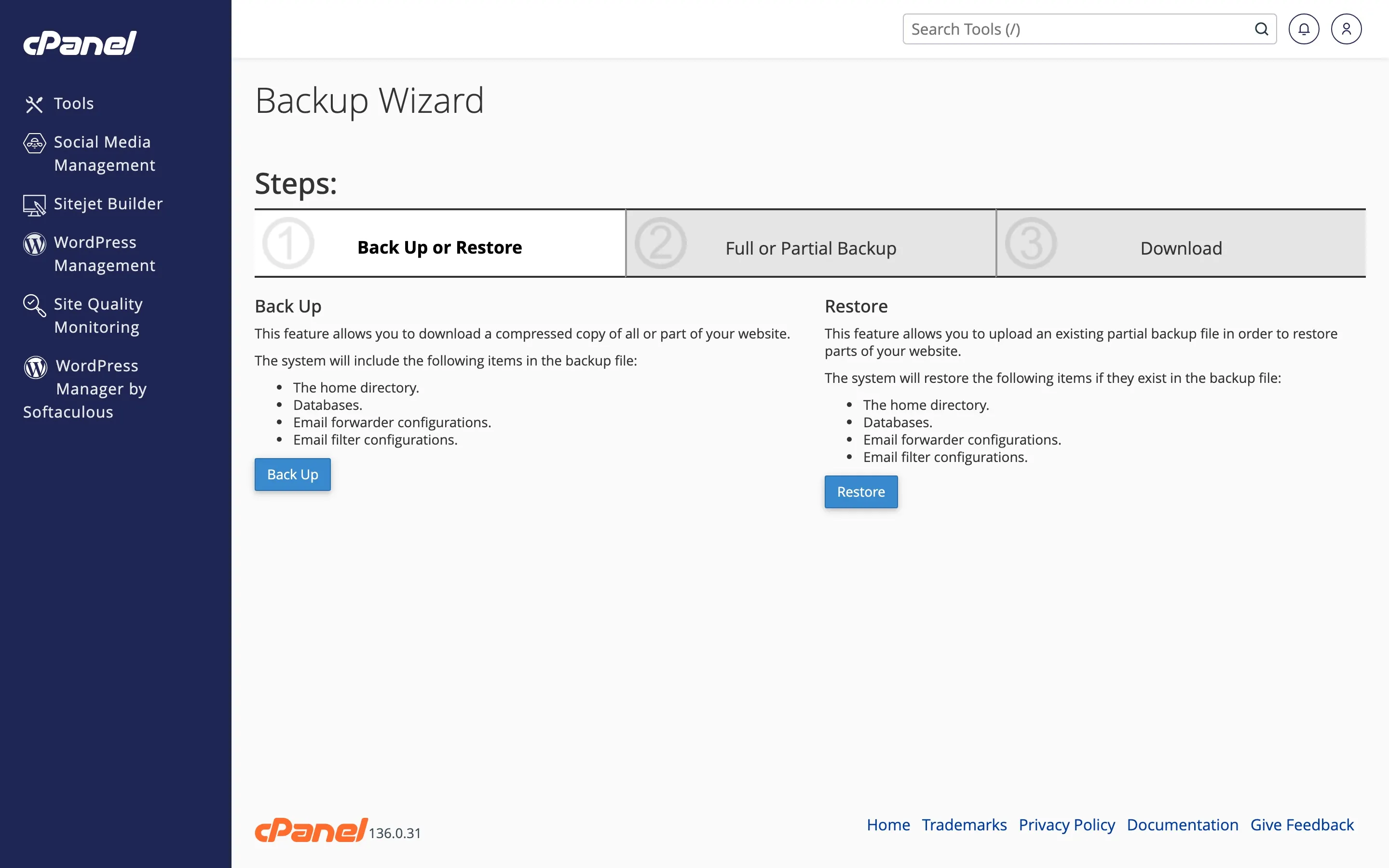
In cPanel, open Backup or Backup Wizard. You can download a full account backup, or only Home Directory, MySQL Databases, or Email Forwarders & Filters. Full backups are large; use when you need a complete copy. For daily use, backing up files (File Manager or FTP) and databases (phpMyAdmin export) is often enough.
Restoring
To restore from a cPanel backup: use Restore in the Backup section. Select the backup file and what to restore (files, database, etc.). For a single database, you can import the .sql file in phpMyAdmin.
Best practices
Keep backups off the server too (download to your PC or use a third-party backup service). Test a restore occasionally.
When to contact support
If restore fails or you need a backup from our side, open a ticket.
Was this helpful?
Thanks for your feedback!