

What this solves
SSH is blocked (firewall, wrong keys, sshd down) or the OS needs interaction at boot. VNC gives keyboard/screen access over the hypervisor.
How to open it
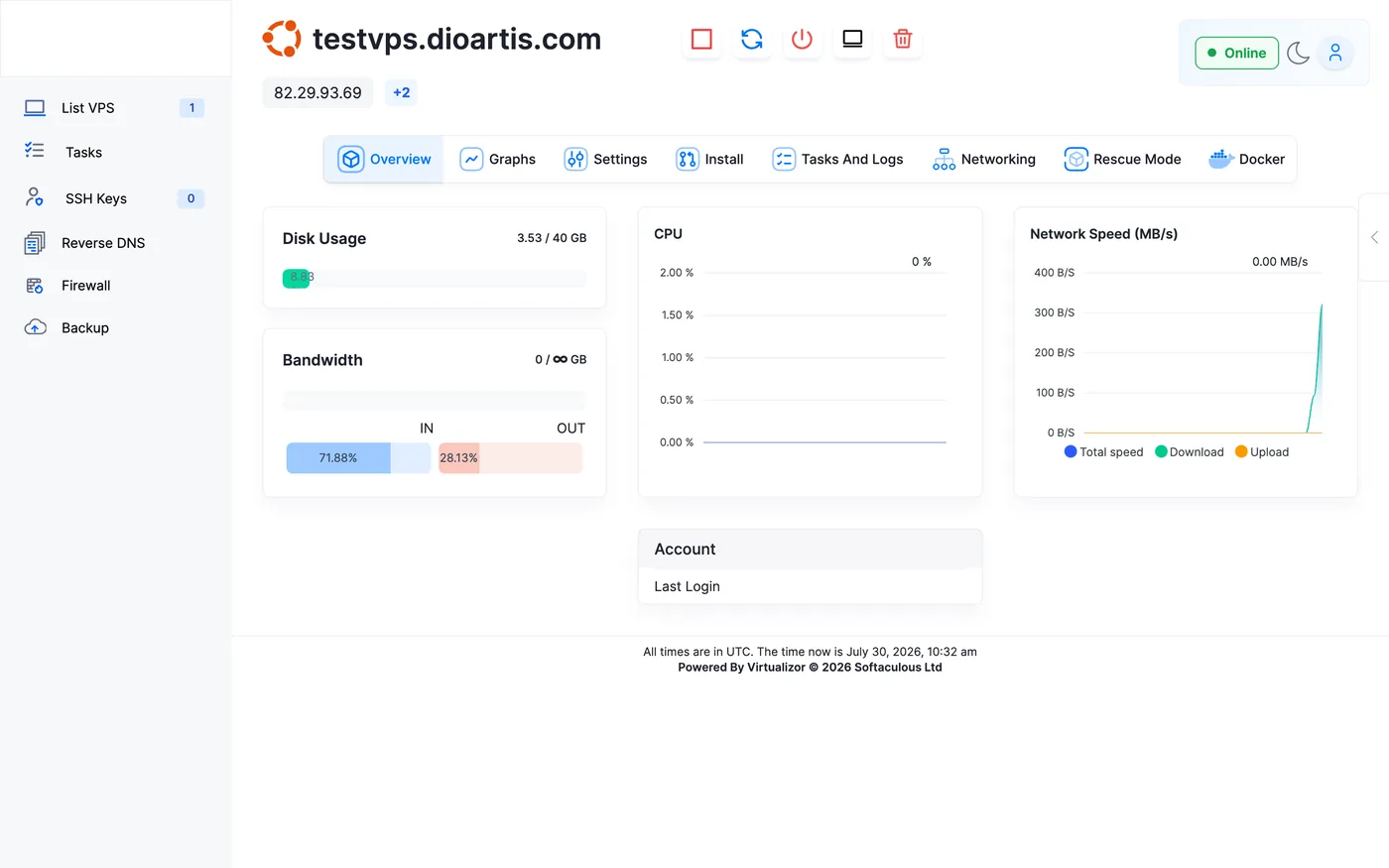
- Client Area → Services → your VPS
- Open Virtualizor → Enduser Panel
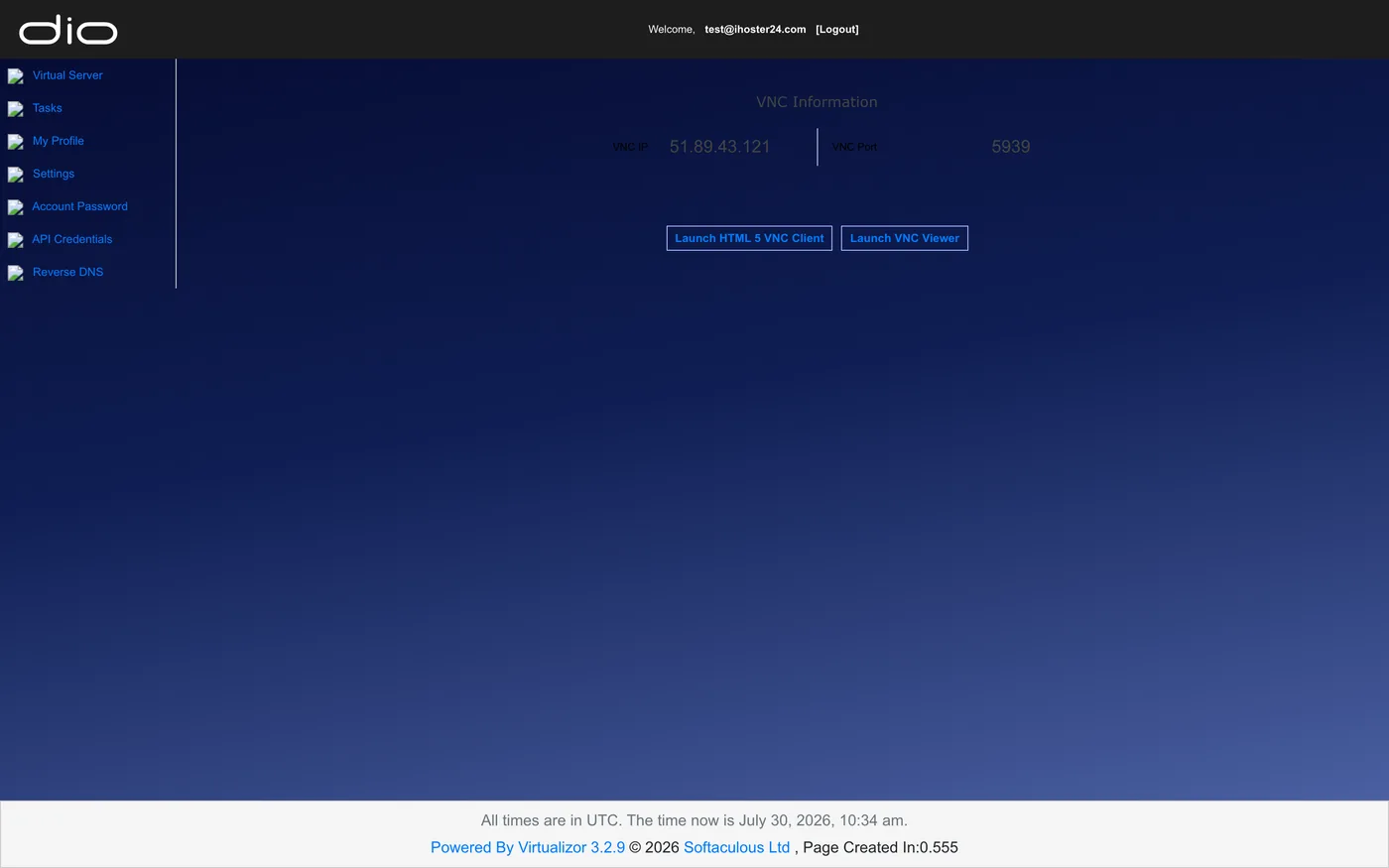
- On the VPS overview, click the VNC (monitor) icon in the top action bar — or open VNC Information and choose Launch HTML 5 VNC Client
- Allow pop-ups if the browser blocks the window
- Log in as
rootwith your password
Common uses
- Fix UFW/firewalld rules that blocked SSH
- Repair
sshd_configmistakes - Reset root password when you still have local login
- Watch boot errors after a kernel update
Note: Console is for recovery and admin tasks — day-to-day work is still over SSH.
When to contact support
If the console won’t start, shows a black screen after long waits, or the VPS won’t boot, open a Technical ticket with screenshots if possible.
Was this helpful?
Thanks for your feedback!