One-click install (Softaculous)
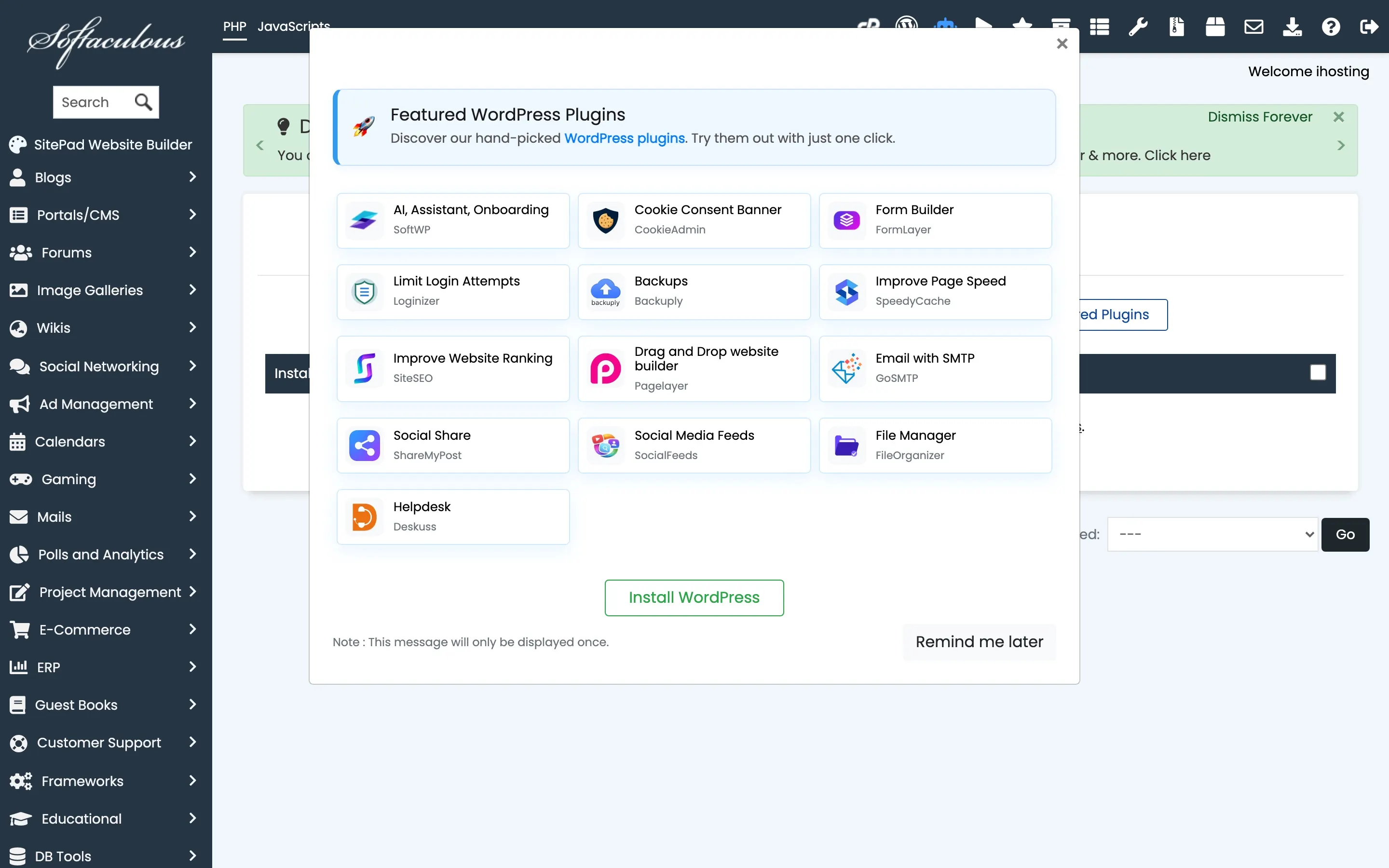
From Client Area → Services → your hosting → Log in to cPanel. In cPanel, open Softaculous Apps Installer (or search for Softaculous). Choose WordPress → Install, select your domain and directory (root or a subdirectory), set admin username and password, then complete the wizard.
WP Toolkit
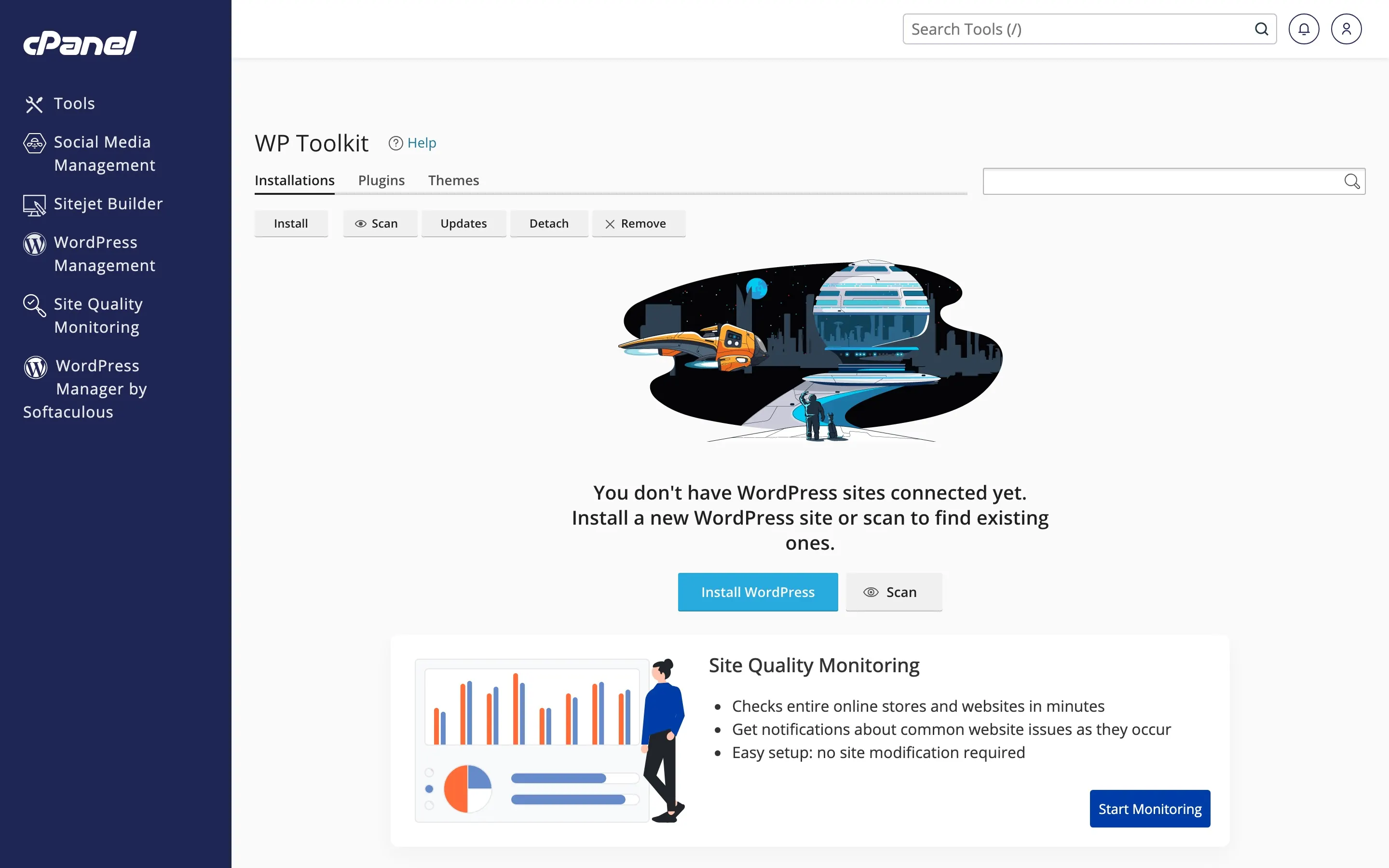
You can also manage existing WordPress sites from WP Toolkit in cPanel (Installations, Plugins, Themes, Updates).
Manual install
Download WordPress from wordpress.org, upload the files via FTP or File Manager to the correct directory, create a MySQL database and user in cPanel, then run the install by visiting your domain in the browser.
After installation
Log in to the WordPress admin, set permalinks (e.g. Post name), and enable SSL if you haven’t already — see How to enable SSL (Let’s Encrypt).
Was this helpful?
Thanks for your feedback!