

What this solves
You want your site to use HTTPS. Let’s Encrypt provides free SSL certificates. This guide shows how to enable it in cPanel.
Step 1: Open SSL/TLS
In cPanel, open SSL/TLS or the SSL/TLS Status / certificates wizard. You’ll see options for Status, Certificates, Keys, Requests, and Installation.
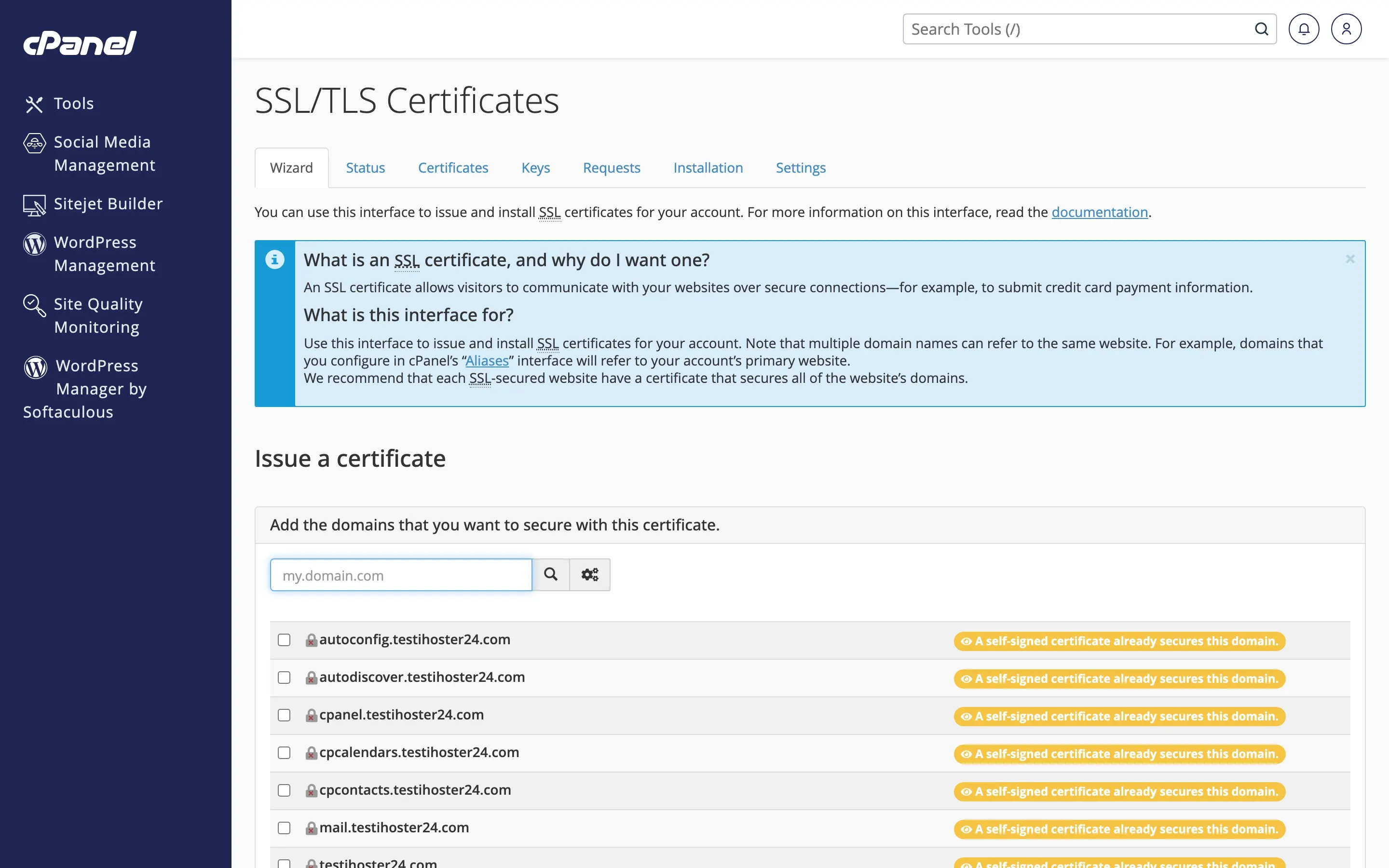
Step 2: Issue certificate
Select the domain and issue via AutoSSL / Let’s Encrypt (or Run AutoSSL from SSL/TLS Status). The system will validate the domain and install the certificate. This can take a minute or two.
Step 3: Force HTTPS (optional)
Use “Force HTTPS Redirect” in Domains (or add a redirect rule) so HTTP requests go to HTTPS. Check your site in a browser to confirm the padlock.
Tip: Certificates usually auto-renew. If issuance fails, confirm the domain’s DNS points to this hosting account first.
When to contact support
If issuance fails (e.g. domain not pointing here, or rate limit), we can help fix it.
Was this helpful?
Thanks for your feedback!